
Connect the site
with the back office.
The materials request. The purchase and its job. The hours, the delivery docket and the photo of finished work. Capture them where the work happens, so the office has the detail to coordinate the next step and review the cost.
For builders, electrical, plumbing, HVAC and civil contractors. Give the crew the work plan and give the office a record of what happened. Free to download; a configured company account and project are required.


No account yet? Start here — it takes a consultation, not a credit card.
One project up to AU$1,000,000, with up to 25 tasks and subtasks, unlimited office users and three Mobile users. Full platform. No expiry — free until you start a second project. Consultation first, then we configure the account around your job.
The plan goes to site. The record comes back.
A crew moves to another task. A delivery arrives short. Someone buys fittings at the counter. The office needs to know which job and which work each event belongs to, while the people on site still have the detail.
Contractable Mobile connects those records to the project. The team can see the work and allocations they have access to, then capture hours, purchasing information, materials requests and supporting photos from the phone.
Purchasing with job context
Capture the purchase event and its job. Add work attribution and cost where your permissions allow, or leave the office to complete the detail.
Materials requests from site
Record what the crew needs for the work, giving the office a request to act on as part of your purchasing process.
Who is working where
See scheduled crew allocations and the work people are assigned to, within the access your business gives each team member.
Hours against the task
Confirm or amend scheduled work and attribute the hours to the tasks that used them. Submit the record for management approval.
Task completion and photos
Update task completion and capture images of the work, giving the project team supporting evidence to review.
Goods receipts and dockets
Record what arrived and photograph the delivery docket or receipt. Give the office the site record it needs to check the delivery against the order.
Put the purchase against the work while you are there.
At the trade counter or on site, capture the job behind the purchase. Some teams want the crew to record the event and let the office finish it. Others give supervisors more responsibility for attribution and cost. Configure the handoff around who does the work in your business.
Here is one supported workflow: create a purchase record, associate the work and reserve a PO number for the office to complete.
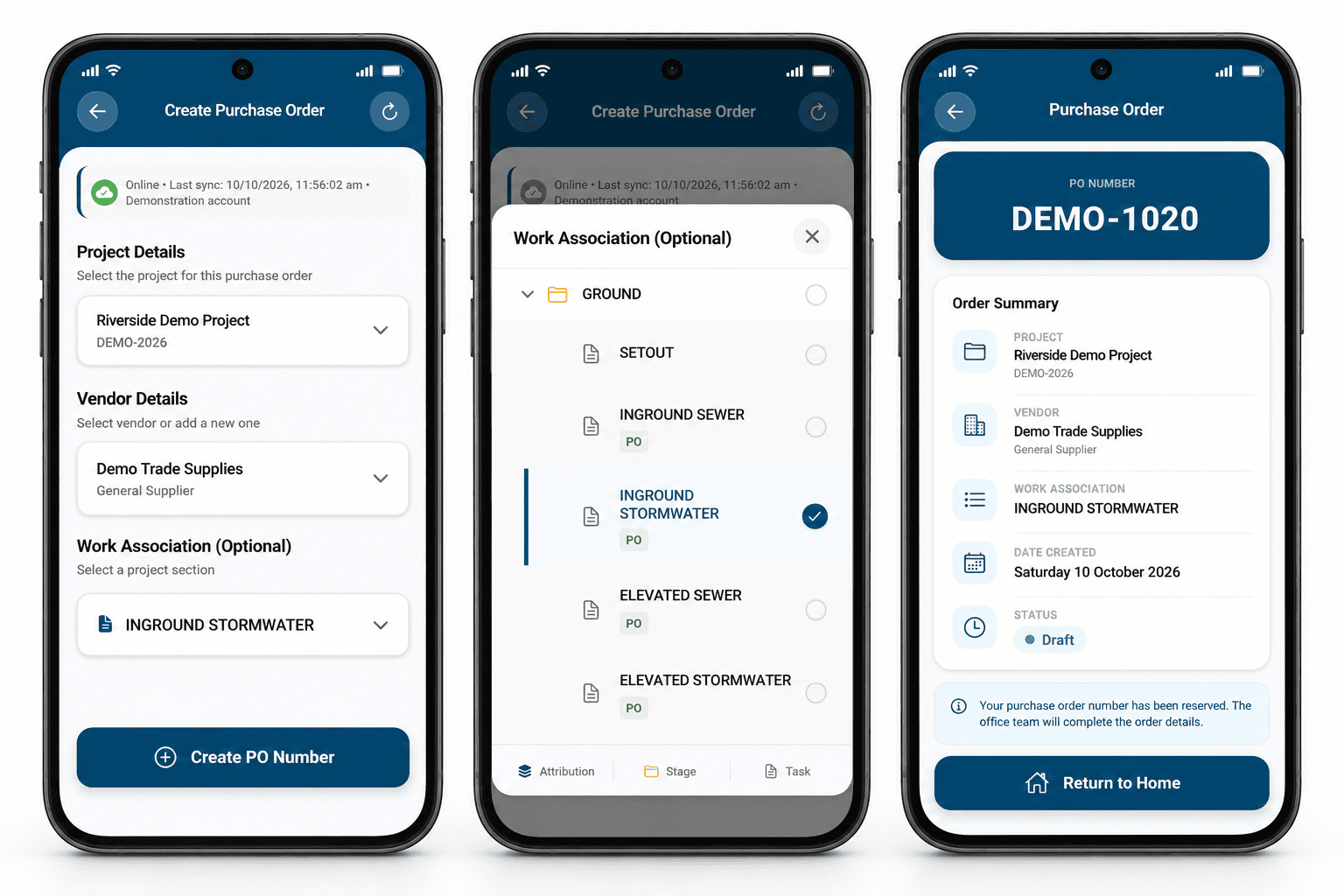
01 · Choose the job and supplier
Start the purchase record with the project and supplier. This gives the office the context for the order before it has to work backwards from an invoice.
02 · Associate the work
Select the section or task where appropriate. The example links the purchase to inground stormwater, so the office can see which part of the job it belongs to.
03 · Reserve the number. Hand over the detail.
The phone shows a reserved PO number and Draft status. In this workflow, the office completes the order details. Your permissions determine who can complete and approve each step.
Illustrative phone mockups based on supplied app screens, with demonstration project and supplier details. AI-rendered; presentation differs slightly from the app. Select an image to enlarge the sequence.
A reserved number is the start of the record. The example above is still a draft. An order raised against the work creates an unbilled commitment; the linked invoice becomes actual cost while the unbilled remainder stays committed. A materials request, draft number or saved photo is not evidence that an order has been approved or posted to financials.
Use Upload Cost to capture the purchase event and job, or include work attribution and cost on site. From materials request through ordering, receipt and office review, we configure the process around your team's responsibilities. If a step your business needs is missing, we will work with you to support it.
In the purchase-order example above, once the office completes, prices and raises the order against its task, the unbilled value becomes a commitment that can be compared with the task allowance. Explore purchasing and cost attribution →
Give the contractor a number. Keep the work tied to the task.
Need a contractor for a small job on site? Create a work order (WO) number against the project task. Give that number to the contractor to include on their invoice as the reference for the work you have authorised.
The work has a project reference
The Mobile step creates the WO number and its task attribution. For work such as concrete cutting, waterproofing or excavation, the invoice can carry the reference back to the part of the project it belongs to.
Authority is with the person issuing it
This feature is enabled only for personnel authorised to make company purchases. There is no approval workflow attached to the Mobile work-order feature.
The WO number carries task attribution, not a committed cost. The cost is usually unknown at this point and becomes known when the contractor supplies their invoice. A packing slip or delivery docket records the delivery; it does not by itself establish the cost.
Larger subcontract packages with milestone payment schedules are managed on desktop. Explore milestone work orders and subcontractor retention →
Keep the office connected to the day on site.
Coordinate the crew
See who is allocated where and check assigned tasks and the project schedule. Give supervisors and crew the visibility they need to coordinate the work, with access set for each person.
This is visibility of scheduled work and allocations. On-site confirmation is a separate setting to discuss during setup.
Request it. Receive it. Keep the docket.
Raise a materials request when the need is known. When a delivery turns up, capture goods receipt information and the docket, so the office can review what was ordered, what arrived and what is outstanding.
The purchase, delivery and invoice are separate parts of the process. Keep the evidence with the job so the team can investigate a mismatch.
Show the work that was completed
Update task completion and capture photos from site. Give the project manager a record to review alongside the hours and materials used on that work.
A completion photo supports the record; it does not replace the checks, acceptance or approval your business requires.
The useful handoff is the event plus its context. Which job, which work, what happened and what needs review. That gives the back office a starting record instead of another call to reconstruct the day.
Know which work used the hours.
The crew was booked for rough-in. The day also included fit-off. Recording a total tells you how long the day ran; recording the tasks tells your project team where that effort went.
Start with the scheduled entry, update the work and hours, then check the day before confirmation and submission. Here is what that looks like on the phone.
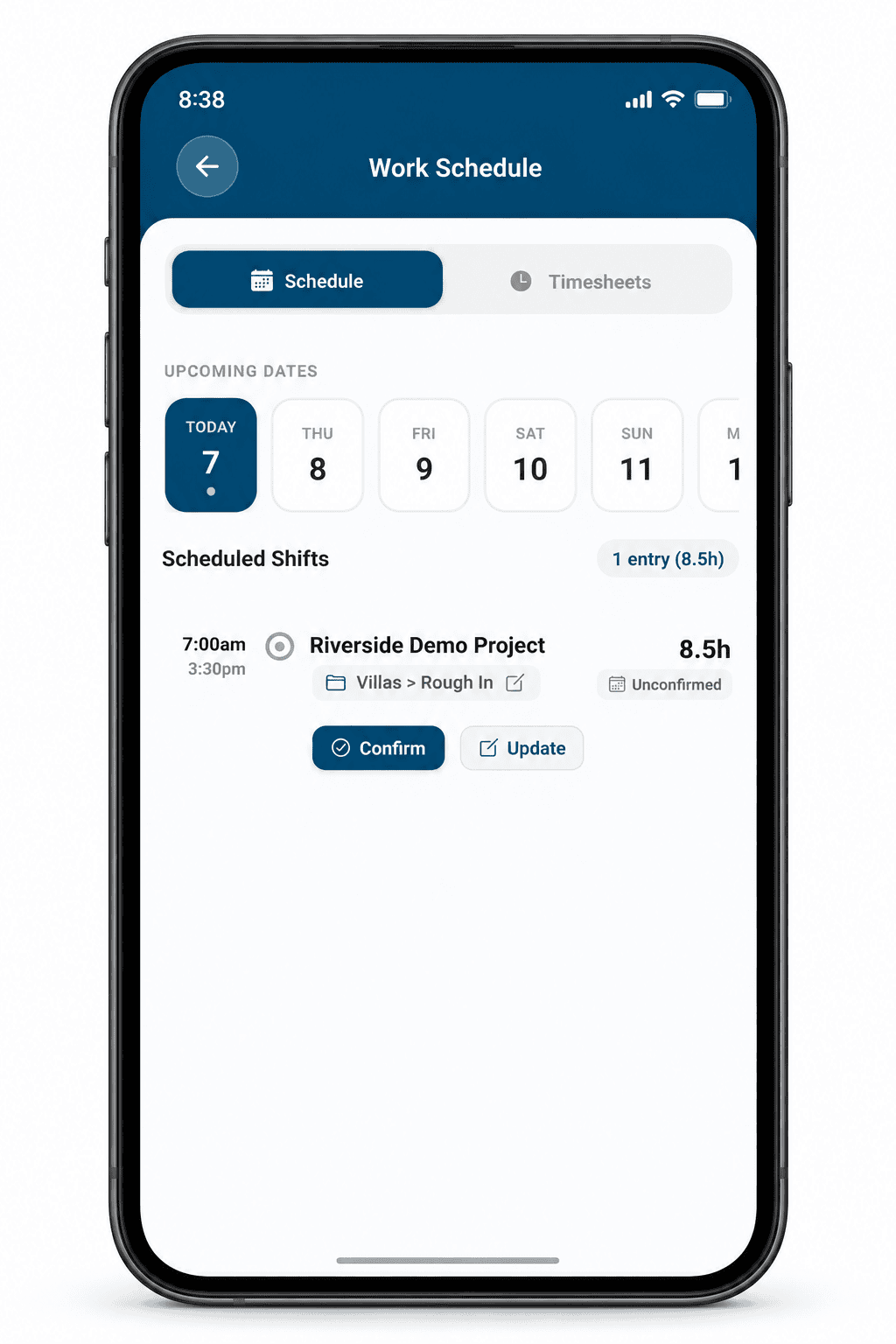
01 · Start with the planned work
The project, task and scheduled hours are already there. Check them against the day you worked. In this example, the starting entry is 8.5 hours on rough-in.
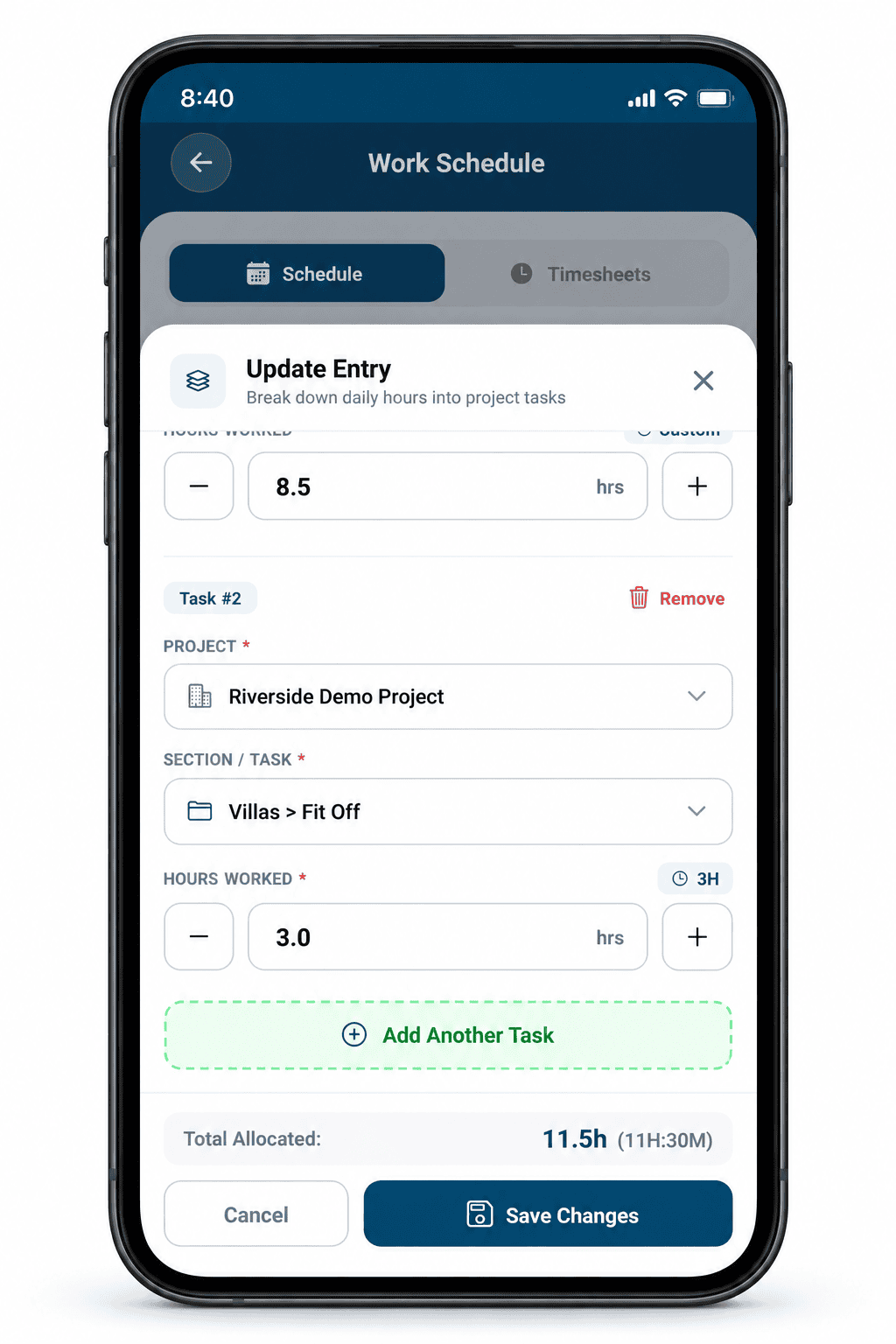
02 · Record where the day changed
Add the other task and its hours. Here, three hours of fit-off are added to the existing 8.5 hours of rough-in. The total allocated becomes 11.5 hours.
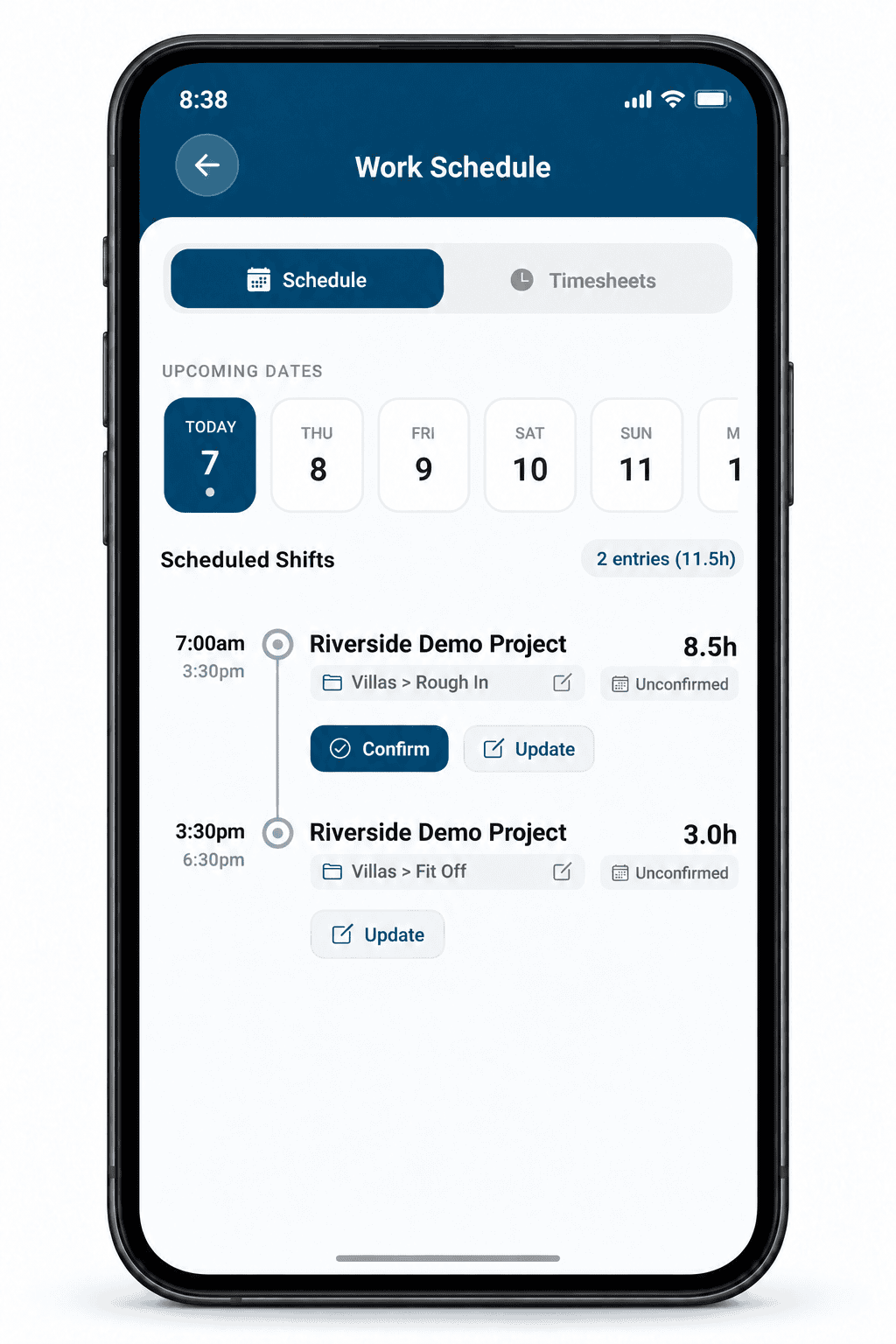
03 · Check the entries before confirming
Review the hours against each task. Both entries are still unconfirmed here. Saving an update is a separate step from confirmation, submission and management approval.
Illustrative phone mockups based on supplied app screens, with demonstration project details. AI-rendered; presentation differs slightly from the app. Select an image to enlarge it.
The record comes first. Approval turns worked hours into actual cost. After submission and management approval, labour is costed using the configured role or individual loaded rate and attributed to the relevant task. The 11.5 hours shown above are recorded entries, not an approved payroll calculation. Breaks and overtime depend on the configured work-hour settings.
What happens to those hours once they are submitted — the approval gate, and the three ways an hour is costed. Explore workforce costing and approvals →
The people doing the work can record the hours.
Labour-hire workers can use Contractable to receive work tasks and submit timesheets against them. The office can use basic payroll reporting to help reconcile the agency’s weekly invoice with the recorded hours.
This connects the site record to the office review. Submission and management approval remain separate steps; an hour logged on the phone is not yet approved actual labour cost.
Useful to the crew. Actionable in the office.
For the site team
See the work and crew allocations available to you. Record hours, request materials and capture purchases, receipts and photos while the detail is in front of you.
For project managers
Review task completion, labour effort and the materials needed or received. Use the site record to question an overrun, follow up a shortage or adjust the delivery plan.
For managing directors and commercial teams
Connect site activity with the work that was priced. Review approved labour and purchasing against the budget to understand where the job is absorbing cost and what needs attention.
For finance teams
Start with the job, work attribution and supporting docket or receipt. Complete and review the purchasing records, and use approved hours and reports to support payroll preparation. Contractable is not the payroll processing platform.
Then it asked you to sign in. Here is why.
Contractable Mobile connects to your company’s configured account. Projects, people, tasks, purchasing responsibilities and approval permissions are set up together, so the phone and the back office are working with the same job.
Which of these is you?
Your company already uses Contractable
Ask whoever administers your account to add you as a Mobile user and assign your permissions. Your administrator can help with your invitation and access.
You run the business and have no account
This is the one we can help with today. We configure an account around one of your real jobs, with your tasks, your rates and your people — then the app has something to open.
Track your first project for free →You want to see it work first
Bring a job you are running now. We will demonstrate how site records reach the office, who reviews them and where purchasing and approved labour land against the work.
Book a Demo →The free project includes unlimited office users and three Mobile users, so you can start with three people using the app alongside your office team.
Set the responsibilities before the first record.
Does every person need to see financial information?
No. Configure permissions around each person's responsibilities. The crew can have access to work and effort information without access to financial forecasts.
Can the office finish what the site team starts?
Yes. The reserved-PO example above is one such handoff. Define who captures the event, who adds attribution and cost, and who completes or approves the record during setup.
What about poor reception?
Records captured offline sync when the phone reconnects. Check that the records have synced when reception returns, and walk through the activities your crew needs during setup.
Does seeing crew allocations mean tracking their location?
The schedule shows work allocations. On-site confirmation is a separate capability. During setup, we will demonstrate what location information is captured, when and who can access it, so you can explain it to the crew.
Will the app notify the crew when the schedule changes?
Change notifications are not yet available. Updated work is visible when the person opens the app; a change that needs their immediate attention still warrants a call.
Bring a day on site. See how it reaches the office.
A materials request, a counter purchase, a delivery and a shift across two tasks. We will walk through your handoffs, permissions and approvals, and show how the records connect to the project.
One project up to AU$1,000,000, with up to 25 tasks and subtasks, unlimited office users and three Mobile users. Full platform. No expiry — free until you start a second project. Consultation first, then we configure the account around your job.